
Why Most Clinic Tracking Falls Short
Many clinics run Google Ads and see positive-looking metrics: clicks, page visits, Book Now button interactions. But here is the uncomfortable truth: none of those signal that a patient actually booked an appointment.
This gap is especially pronounced for Cliniko users, because bookings often happen on a different domain or inside an embedded iframe. Standard tracking cannot follow this out of the box. The result? Campaigns that look profitable on paper while continuing to waste budget on visitors who never convert.
This guide walks through the complete setup to fix that.
Why Tracking Real Bookings Changes Everything
- Google’s Smart Bidding has real signal to optimise toward
- You can see exactly which keywords and campaigns drive patient appointments
- Cost per acquisition (CPA) becomes meaningful and actionable
- Budget is allocated to what works, not what looks good in a report
How the Tracking Stack Works
The technical architecture connects three systems: your website, Cliniko’s booking platform, and Google Ads. Google Tag Manager (GTM) acts as the bridge, and GA4 acts as the data layer that Google Ads reads from.
Step-by-Step Setup
1 Install GTM on both your website and Cliniko
The same GTM container must be installed in two places: your main clinic website and your Cliniko booking pages. This keeps the tracking thread alive as a user moves between them.
In Cliniko, go to Settings > Integrations > Google Tag Manager and paste your GTM container ID (e.g. GTM-XXXXXXX).
2 Set up GA4 via GTM
Create a GA4 configuration tag (now called a Google Tag) inside GTM using your Measurement ID.
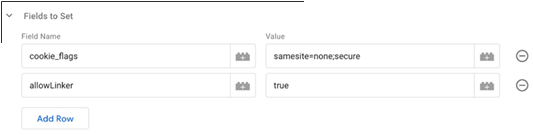
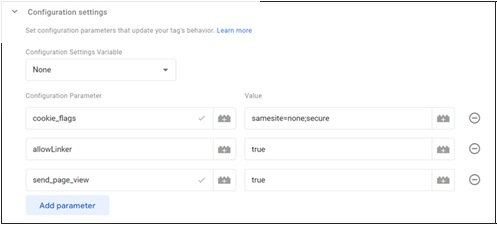
If Cliniko is embedded via iframe, configure cross-domain tracking in your Google Tag advanced settings:
cookie_flags: samesite=none;secure- Enable Linker support
- Add Cliniko's domain to the cross-domain list
3 Track the booking confirmation page
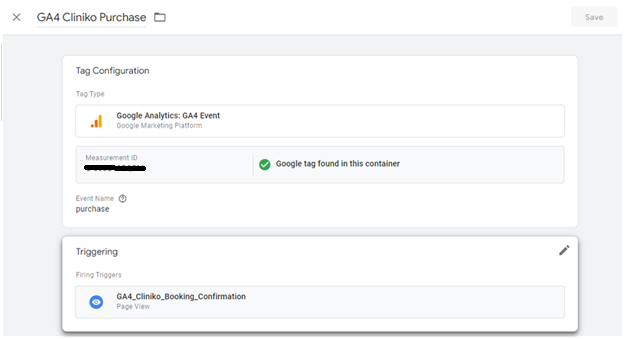
The confirmation page only loads when a booking is genuinely completed. Create a GA4 event tag that fires when it is visited.
Set the trigger to a Page View with the condition:
Name the trigger GA4 Cliniko Purchase, then save and publish.
4 Handle iframe-embedded Cliniko (advanced)
If Cliniko is embedded inside an iframe, a standard page view event will not fire. You need a listener script that detects Cliniko's internal confirmation message and pushes a custom event to the GTM data layer.
Custom HTML tag in GTM
| 1 | <script type="text/javascript"> |
| 2 | window.addEventListener("message", receiveMessage); |
| 3 | function receiveMessage(e) { |
| 4 | if (typeof e.data !== 'string') return; |
| 5 | if (e.data.search('cliniko-bookings-page:confirmed') > -1) { |
| 6 | var dataLayer = window.dataLayer || (window.dataLayer = []); |
| 7 | dataLayer.push({ |
| 8 | 'event': 'clinikoBookingCompleted' |
| 9 | }); |
| 10 | } |
| 11 | } |
| 12 | </script> |
| 13 | <script src="script.js"></script> |
After adding this tag, create a GA4 Event tag that fires on the custom trigger clinikoBookingCompleted.
5 Mark events as conversions in GA4
In your GA4 property, go to Configure > Events and toggle the following as conversions:
purchase(from the confirmation page)clinikoBookingCompleted(from the iframe listener, if applicable)
6 Import conversions into Google Ads
Once GA4 is recording booking conversions, link it to Google Ads and import them:
Select your booking conversion events and set a conversion value if applicable. Your campaigns can now bid toward real patient bookings.
7 Fix attribution: stop Cliniko appearing as referral traffic
Without this step, conversions may incorrectly show as coming from cliniko.com as a referral, distorting your channel data.
In GA4, go to Admin > Data Streams > Configure tag settings > List unwanted referrals and add Cliniko's domain.
Common Mistakes to Avoid
Who Should Use This Setup
This tracking approach applies to any clinic using Cliniko for patient appointments, including:
Key Takeaways
- Track confirmed bookings, not clicks, page views, or button interactions
- Install GTM on both your website and Cliniko booking pages
- Use the iframe listener script if Cliniko is embedded on your site
- Mark booking events as conversions in GA4, then import into Google Ads
- Exclude Cliniko as a referral source to preserve clean attribution
Frequently Asked Questions
How do I track Cliniko bookings in Google Ads?
Can Cliniko bookings be tracked if embedded in an iframe?
Why does Cliniko show as referral traffic in GA4?
What is the best conversion to track for health clinics?
Do I need GTM for Cliniko conversion tracking?
Not sure if your tracking is set up correctly?
A tracking audit often reveals missed conversions and misattributed data quietly costing clinics budget every day. A simple fix can make a significant difference without increasing spend.